
Deploying Win32 applications with Microsoft Intune can sometimes fail with the error code 0x87D1041C, which translates to “The application was not detected after installation completed successfully.” This issue typically occurs when Intune detection rules (MSI, File, Registry, or custom script) are misconfigured or fail to validate the app’s presence after installation.
In this guide, we’ll explain the common causes of Intune error 0x87D1041C, how detection rules work, and provide a step‑by‑step checklist to troubleshoot and fix the problem. Whether you’re deploying apps on Windows 10 or Windows 11 devices, this article will help IT administrators resolve Intune Win32 app deployment failures and ensure smooth application delivery across managed endpoints.
For a deeper understanding of how Intune Win32 app detection rules work, you can follow our detailed guide: Understanding Win32 App Detection Rules in Microsoft Intune (techuisitive.com in Bing). That article explains how Intune evaluates application presence using MSI, File, Registry, and custom script detection rules, and what entries are logged in the IntuneManagementExtension.log file during the detection process.
Issue:
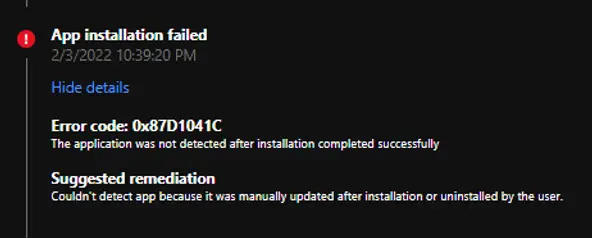
Microsoft Intune Win32 application deployment may fail with the error code 0x87D1041C. You can view detailed information about this failure in the Application installation status section of the Intune admin center, which provides insights into why the Win32 app deployment was not detected after installation. Reviewing these details is the first step in troubleshooting Intune Win32 app deployment errors and validating detection rules.
Error code: 0x87D1041C
The application was not detected after installation completed successfully (0x87d1041c)
Suggested remediation
Couldn’t detect app because it was manually updated after installation or uninstalled by the user.
The deployment error can be checked from the Intune Admin Center / Apps / Windows Apps / <Application Name>
Understanding the Cause of Intune Win32 Deployment Error 0x87D1041C
The Intune error 0x87D1041C indicates that the application was successfully installed on the device; however, Intune could not detect its presence after installation. This detection failure can occur due to several reasons:
- User‑initiated uninstall: The application may have been explicitly uninstalled by the user after installation. This scenario typically applies only to required applications where Intune expects the app to remain present.
- Incorrect detection method: The detection rules configured for the application may not be valid. This often happens when using Registry, File, or custom script detection rules with incorrect paths, values, or parameters. If the detection logic does not match the actual installation footprint, Intune will report the app as not detected even though it was installed successfully.
By reviewing and correcting the Intune Win32 app detection rules, administrators can resolve error 0x87D1041C and ensure reliable application deployment across Windows 10 and Windows 11 devices.
Detection Rule Types and Common Pitfalls
| Detection Rule | Common Pitfall | Quick Fix |
|---|---|---|
| MSI | Wrong product code | Use PowerShell/Registry to confirm |
| File | Incorrect path/version | Double-check folder/file existence |
| Registry | Wrong key/value | Validate with regedit |
| Script | Logic errors | Test script locally before upload |
How to Fix Win32 App Deployment Error 0x87D1041C
No action is required when a required application has been uninstalled by the user. Since the app is assigned as mandatory in Microsoft Intune, it will automatically reinstall during the next policy update cycle.
However, if you encounter this error code immediately after installation, the issue is likely related to the Win32 app detection rules. In such cases, the detection logic must be reviewed, identified, and corrected to ensure Intune can properly validate the application’s presence after deployment.
Checklist for Detection Rule
- Verify detection rule type (MSI/File/Registry/Script).
- Confirm the correct path/product code.
- Check Intune logs (
IntuneManagementExtension.log). - Validate app presence manually.
Verify Intune Win32 App Detection Rule Type
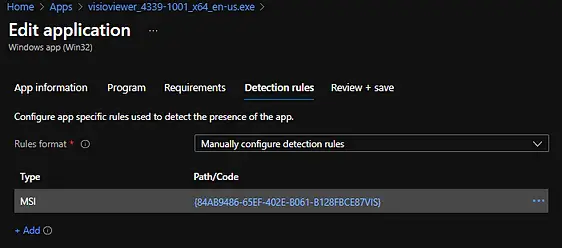
You can validate the Intune Win32 app detection rules (such as application product code, registry key, file or folder path, or custom PowerShell script) from the Detection Rules tab when editing the application in Microsoft Intune. Always ensure that the details provided are accurate so Intune can correctly detect the application after installation.
For example, if you are using a file or folder detection rule, confirm that the path, file name, and version information are correct. Any mismatch in these values can cause Intune to fail detection, even if the application installs successfully.
Please check “Understanding win32 app detection rule” to learn more about Win32 app detection rules.
Confirm the Product Code
If you are using the MSI product code as the detection method in Microsoft Intune Win32 app deployments, you can validate the correct product code directly from the machine where the application is installed.
Run the following PowerShell command to retrieve the MSI product code:
Get-WmiObject -Class win32_product -Filter "Name LiKE '%VISIO%'"
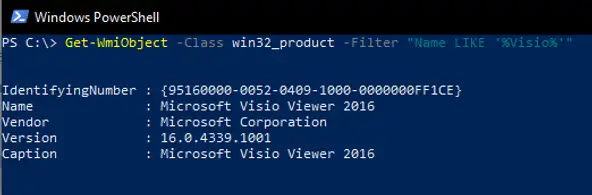
Name → Displays the installed application name.
IdentifyingNumber → Shows the MSI product code (GUID) required for Intune detection rules.
By confirming the correct MSI product code, you ensure that Intune can properly detect the application after installation, preventing common errors such as 0x87D1041C (app not detected post‑install) or 0x87D30006 (invalid detection rule parsing).
Find MSI Product Code in Windows Registry for Intune Detection
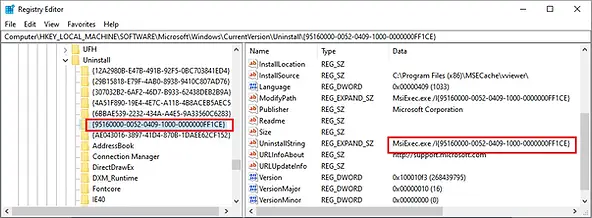
You can also locate the MSI product code from the Windows Registry on a device where the application is installed.
- Open the Registry Editor (
regedit). - Navigate to:
HKEY_LOCAL_MACHINE\Software\Microsoft\Windows\CurrentVersion\Uninstall - Browse through the GUID entries under this path to find the application you are looking for.
- The GUID corresponds to the MSI product code, which can be used in Intune Win32 app detection rules.
Validating the correct MSI product code ensures that Microsoft Intune can properly detect the application after installation, preventing errors such as 0x87D1041C (app not detected post‑install) or 0x87D30006 (invalid detection rule parsing).
Related Posts
- Win32 App Deployment failed with error code 0x80070643
- Win32 App Deployment Failed with Error 0x87D1041C
- Win32 App Deployment failed with error 0x87D300C9
- Win32 App failed with error code 0x80070653
- That account info didn’t work – error when disconnecting Windows 10 / 11 Work or School account
- Intune – Windows 10 MDM- Basic troubleshooting
- Deploying Microsoft 365 Apps Stuck in Downloading in Company Portal
- Windows 10 / 11 Operating System Build Versions
- MDM Enroll: Device Credential, Failed (Unknown Win32 Error code : 0xcaa9001f
- Microsoft Endpoint Manager: Error Code Reference
- Intune Bulk Enrollment with Provisional Package failed Error 0xCAA2000C
- How to Fix Intune Win32 App Deployment Error 0x87D30006
Explore More Intune Guides
Continue building your Microsoft Intune skills with step-by-step tutorials covering device management, application deployment, automation, and troubleshooting.
- Microsoft Intune Learning – Explore comprehensive guides on device enrollment, compliance policies, application deployment, Windows updates, and more.
- Intune Application Deployment & Management – Learn how to manage applications with Microsoft Intune, including app deployment, assignment, detection rules, updates, and troubleshooting. Explore practical guides for Microsoft Store apps, Win32 apps, and other application types.
