
The Win32 app in Microsoft Intune offers enhanced control over application deployment. However, deployment failures can occur, and understanding the troubleshooting steps for Intune Win32 apps is essential. One common issue is the error code 0x80070643, which indicates a fatal error during installation. This error can stem from various causes—some are easy to identify, while others require deeper investigation. In such cases, generating a verbose installation log becomes crucial to pinpoint the root cause. In this guide, we’ll explore the reasons behind error 0x80070643 and walk through effective strategies to resolve it.
TL;DR – Intune Win32 App Deployment Error 0x80070643
Deployment of Win32 apps via Microsoft Intune may fail with error 0x80070643, often due to issues with SYSTEM account permissions, MSI installation parameters, or missing dependencies. The blog walks through troubleshooting steps, including:
- Using verbose logging (
/L*v) to diagnose installation failures - Ensuring the SYSTEM account has access to the required files
- Correcting MSI command-line syntax
- Reviewing log files with tools like CMTrace
A real-world example involving WinZip deployment illustrates how improper access or command formatting can trigger this error. Fixing the root cause typically resolves the issue.
Issue – Error 0x80070643
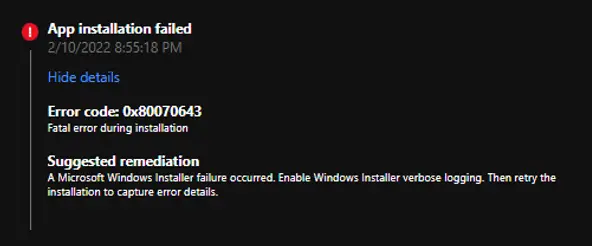
The Win32 App deployment failed with the following error in Microsoft Intune.
Error code: 0x80070643 : Fatal error during installation
Suggested remediation: A Microsoft Windows Installer failure occurred. Enable Windows Installer verbose logging. Then retry the installation to capture the error details.
The deployment error can be checked from Microsoft Intune Admin Center > Apps > Windows Apps blade.
Understanding Error 0x80070643: What Causes the Fatal Installation Failure
The Intune error 0x80070643 is a generic installation failure code that does not point to a single root cause, making troubleshooting more complex. This error can appear in multiple scenarios where MSI‑based applications or Microsoft Intune Win32 app deployments encounter issues.
You are likely to see this error under conditions such as:
Common Causes
Cause 1: Encrypted Folder Installation
- Symptoms: MSI fails silently
- Fix: install to a non-encrypted folder.
Cause 2: SYSTEM Account Permission
- Symptom: Access denied errors.
- Fix: Grant SYSTEM full control.
Cause 3: CD/DVD Drive Target
- Symptom: MSI fails with 1603.
- Fix: Install to a valid HDD partition.
Cause 4: App Already Installed
- Symptom: Duplicate install attempt.
- Fix: Uninstall, then redeploy.
Cause 5: Unknown/Generic Failure
- Symptom: Fatal error without a clear cause.
- Fix: Enable verbose logging.
Troubleshooting Steps
To resolve this issue, you may need to take one or more of the following actions, depending on the root cause:
- Install the package to a drive that is not a CD/DVD drive or not accessed as a substitute drive.
- Install the package in a folder that is not encrypted.
- Check if the app is already installed on the PC. If so, uninstall and reinstall the app.
- Grant full control permission to the SYSTEM account on the target folder where you are trying to install the application.
- Generate a verbose log to identify the possible issues. Continue below to learn about verbose logging.
Verbose Logging with MSIExec for Intune Troubleshooting
The Microsoft Installer (MSIExec.exe) handles application installations. By enabling verbose logging, you can capture detailed information about the installation process in a log file. This is especially useful when diagnosing Intune Win32 app deployment failures.
The most commonly used logging option is /L*V, which records all events with verbose detail.
Here’s a complete MSI command line example:
msiexec /i App1.msi /L*V App1.log
- /i App1.msi → Installs the MSI package.
- /L*V “C:\Temp\App1.log” → Creates a detailed log file named App1.log in the specified path.
You can analyze the log file using Notepad or a log viewer such as CMTrace to quickly identify error codes, failure points, or permission conflicts. This level of detail helps pinpoint the exact cause of installation issues, whether related to silent install switches, detection rules, or missing prerequisites.
Real-World Example
We have documented insights from multiple scenarios where fatal errors occurred during application installation.
The target folder was a CD/ DVD Drive
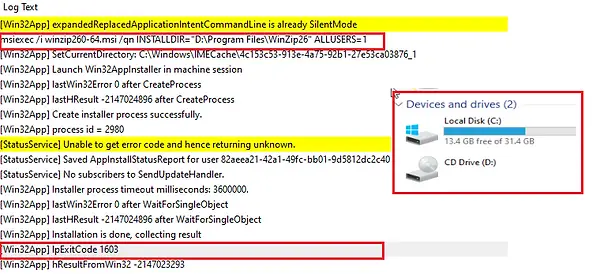
The WinZip installation failed with error 0x80070643. The command line below was used.
msiexec /i winzip260-64.msi /qn INSTALLDIR="D:\Program Files\WinZip26" ALLUSERS=1
Upon reviewing the IntuneManagementExtension.log, we discovered that the installation command was attempting to deploy the application to the D: drive, which triggered a 1603 fatal error. Further investigation of the affected computer revealed that the hard disk contained only a single partition, and the D: drive letter was mapped to a CD/DVD drive. This misconfiguration was the root cause of the installation failure.
By correcting the installation path or ensuring the drive mapping is valid, administrators can prevent this error and ensure successful Microsoft Intune Win32 app deployments.
Best Practices
- Always test MSI installs manually before packaging.
- Use pilot groups for Win32 deployments.
- Automate log collection with PowerShell/Graph API.
- Document fixes for recurring issues
Related Posts
- Win32 App Deployment failed with error code 0x80070643
- Win32 App Deployment Failed with Error 0x87D1041C
- Win32 App Deployment failed with error 0x87D300C9
- Win32 App failed with error code 0x80070653
- That account info didn’t work – error when disconnecting Windows 10 / 11 Work or School account
- Intune – Windows 10 MDM- Basic troubleshooting
- Deploying Microsoft 365 Apps Stuck in Downloading in Company Portal
- Windows 10 / 11 Operating System Build Versions
- MDM Enroll: Device Credential, Failed (Unknown Win32 Error code : 0xcaa9001f
- Microsoft Endpoint Manager: Error Code Reference
- Intune Bulk Enrollment with Provisional Package failed Error 0xCAA2000C
- How to Fix Intune Win32 App Deployment Error 0x87D30006
Explore More Intune Guides
Continue building your Microsoft Intune skills with step-by-step tutorials covering device management, application deployment, automation, and troubleshooting.
- Microsoft Intune Learning – Explore comprehensive guides on device enrollment, compliance policies, application deployment, Windows updates, and more.
- Intune Application Deployment & Management – Learn how to manage applications with Microsoft Intune, including app deployment, assignment, detection rules, updates, and troubleshooting. Explore practical guides for Microsoft Store apps, Win32 apps, and other application types.
